Remote user logoff in the archive. An old Windows admin note on dealing with disconnected or idle sessions.
If you like every other sysadmin have users that simply forget to log-off, throw the following in a batch script.
This script will need to run with admin rights.
echo off
cls
echo What is the machine name?
set /p server=
quser /server:%server%
set /p session=
logoff %session% /server:%server%
quser /server:%server%
VBScript ODBC in the archive. An older Windows script for setting up an ODBC connection.
How to create a basic SQL AD authentication ODBC connection (2003/2003 64)
This could easily be adapted to scripted deployments and will work on server 2003 / 2003 64.
Before starting, the easiest way to know exactly what you need to add is to export
HKEY_LOCAL_MACHINESOFTWAREODBCODBC.INI%odbc folder% and
HKEY_LOCAL_MACHINESOFTWAREODBCODBC.INIODBC Data Sources%data source name%
These exports will give you the keys needing to be added.
Below is what has worked for me, however additional keys/changes can be added to suit:
On Error Resume Next
Dim Registry Set Registry = WScript.CreateObject(“WScript.Shell”) Set objShell = WScript.CreatedObject (“WScript.Shell”)
‘Create the DSN only if it doesn’t already exist. Result = Registry.RegRead (REG_KEY_PATH & “Server”) If Result = “” Then Registry.RegWrite REG_KEY_PATH & “DataBase”,DatabaseName,”REG_SZ” Registry.RegWrite REG_KEY_PATH & “LastUser”,LastUser,”REG_SZ” Registry.RegWrite REG_KEY_PATH & “Server”,Server,”REG_SZ” Registry.RegWrite REG_KEY_PATH & “Driver”,DriverPath,”REG_SZ” If WindowsAuthentication = True Then Registry.RegWrite REG_KEY_PATH & “Trusted_Connection”,”Yes”,”REG_SZ” End If ‘ This key is required for the DSN to appear in the ODBC Control Panel REG_KEY_PATH = “HKLMSOFTWAREODBCODBC.INIODBC Data Sources” & DataSourceName Registry.RegWrite REG_KEY_PATH,DriverName,”REG_SZ” End If Set Registry = Nothing
Robocopy replication from the blog. A file replication workflow with logs for checking whether jobs ran.
Replace DFS with a monitored robocopy script.
DFS has been a great system you would use to replicate files from one site to another; however one of the biggest limitations is the inability of monitoring it, IE – daily log to show that:
It is still working
To show WHAT is getting replicated
As a replacement I have taken a step backwards and setup a robocopy script as a scheduled task to mirror a source in a different location and a second script to send you the logs. Plain and simple.
The robocopy script is as follows:
@ECHO OFFSETLOCAL::SET _source=”c:Example Source Folder”SET _source=SET _dest=”d:Example Destination Folder”SET _dest=f:SET _what=/COPYALL /B /SEC /A-:H /MIR /XD “C:System Volume Information”
:: /COPYALL :: COPY ALL file info:: /B :: copy files in Backup mode.:: /SEC :: Copy security Descriptors:: /MIR :: MIRror a directory tree:: /XD :: Copy except for the following folders:: /XF :: Exclude file(s) – ie the log file:: /A :: Set attributesSET _options=/R:3 /W:5 /LOG:C:robolog.txt /NP /NDL:: /R:n :: number of Retries:: /W:n :: Wait time between retries:: /LOG :: Output log file; can be placed of a network share:: /NFL :: No file logging:: /NDL :: No dir logging:: /NP :: No Progress – does not show progress barROBOCOPY %_source% %_dest% %_what% %_options%
Now that we have replication, lets get some logging:
Set objMessage = CreateObject(“CDO.Message”)
objMessage.Subject = “Replication logs”
objMessage.From = “sender@contoso.com”
objMessage.To = “recipient@contoso.com”
objMessage.TextBody = “Please find attached you backup logs.”
objMessage.AddAttachment “c:robolog.txt”
objMessage.Configuration.Fields.Item _
(“http://schemas.microsoft.com/cdo/configuration/sendusing“) = 2
objMessage.Configuration.Fields.Item _
(“http://schemas.microsoft.com/cdo/configuration/smtpserver“) = “servername”
objMessage.Configuration.Fields.Item _
(“http://schemas.microsoft.com/cdo/configuration/smtpserverport“) = 25
objMessage.Configuration.Fields.Update
objMessage.Send
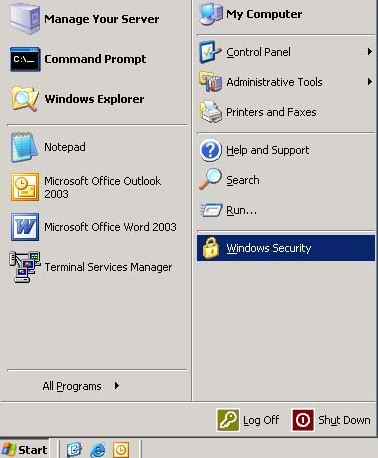 This script will need to run with admin rights.
echo off
cls
echo What is the machine name?
set /p server=
quser /server:%server%
set /p session=
logoff %session% /server:%server%
quser /server:%server%