TurnKey WordPress Migration: Archived Notes

TurnKey WordPress migration in the archive. Moving an existing site to a TurnKey Linux virtual appliance.

So, today I had decided to try out TurnKey linux to run my wordpress instead of the traditional ubuntu + all the manual components to a simple, out of the box solution that could be run as a virtual machine with a readily prepped linux environment. Getting the machine going is a breeze, a quick tutorial may be found here: About 5 minutes – pretty straight forward to setup. Seeing this blogpost is going to be hindsight for me and informative for you, I would also recommend using VMWare Workstation for the snapshots, I took one once I had a clean VM with all the patches and such. If you have only been needing a clean install, you can stop reading here but if your are upgrading, the following steps will save you a bit of googling. First of all you will need to export your original posts which can be found from your tools > export of your original worpress.org site. Next up, we will assume you have already gotten your site up and running if you followed the guide above because you will need to re-import it into your new site. This you will do after logging into your new wp-admin. Below are a few considerations which should be tackled in the following order:
  1. Login – and create yourself a new user – this user will be used to take ownership of your posts in your NEW blog.
  2. When importing, WP will ask you to download a the WordPress importer; do it!
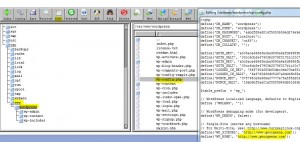
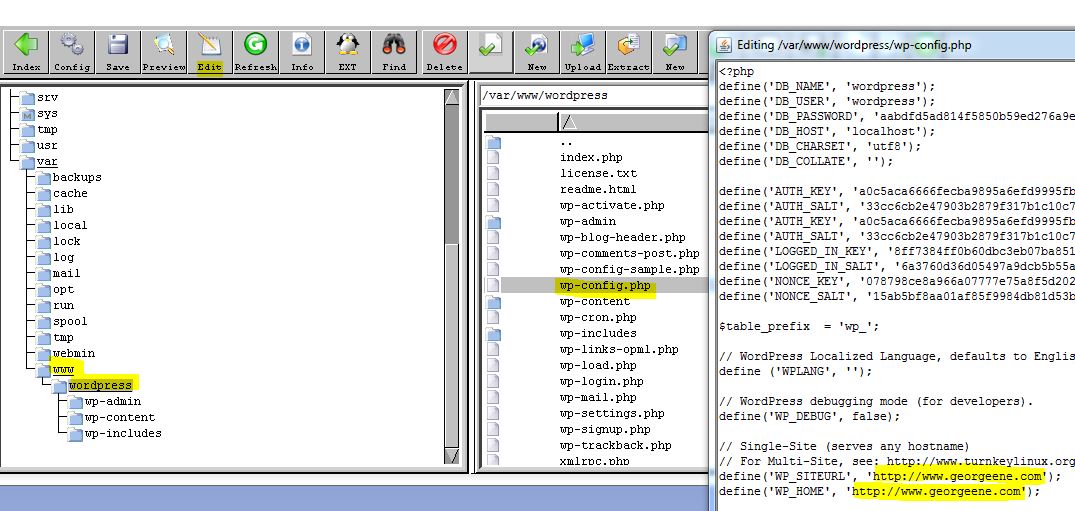
  3. Once imported you will need to alter your wp-config.php, please also note the location and how I modified it. Turnkey offers a nice/lazy way of editing your config files. This can be found at https://wp-ip-address:12321 then navigate to your Tools then File manager. Modify the following few fields withing the php file. wp-config
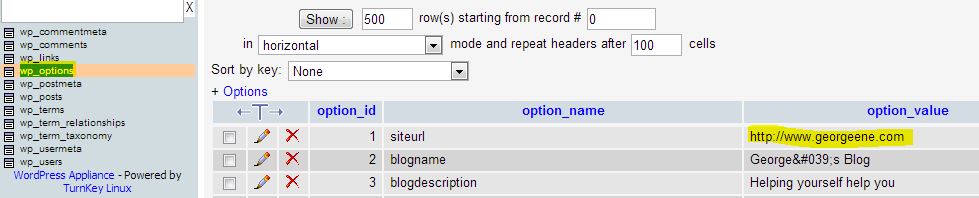
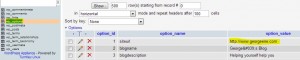
  4. Ok, we are halfway there. Now to change two fields into on your database, logon to your php myadmin using https://wp-ip-address:12321, select your wordpress database from your drag-down box. and open your wp_options table. Here you will need to change two fields; home AND site url to incorporate reflect your new site. siteurl
  5. Probably the most important issue I have faced is getting the <a href> of the pictures pointing towards the external facing site and not the internal ip address of the server. to address that, a little hunting around gave me the following SQL query I ran on the website instead of doing it manually. You can tun the following update by clicking on SQL on your MyPHP: UPDATE wp_posts set post_content=REPLACE(post_content, ‘192.168.2.225/’, ‘www.georgeene.com/’)
And – Voila and welcome to your new wordpress block running on next to no resources and is FAST given the apace + debian back-end.

Related reading: Backup: Notes from the Systems Admin Archive.
Ubuntu 12.10 Performance on the Toshiba NB100

Ubuntu 12.10 in the archive. Performance observations from an older Toshiba netbook with modest hardware.

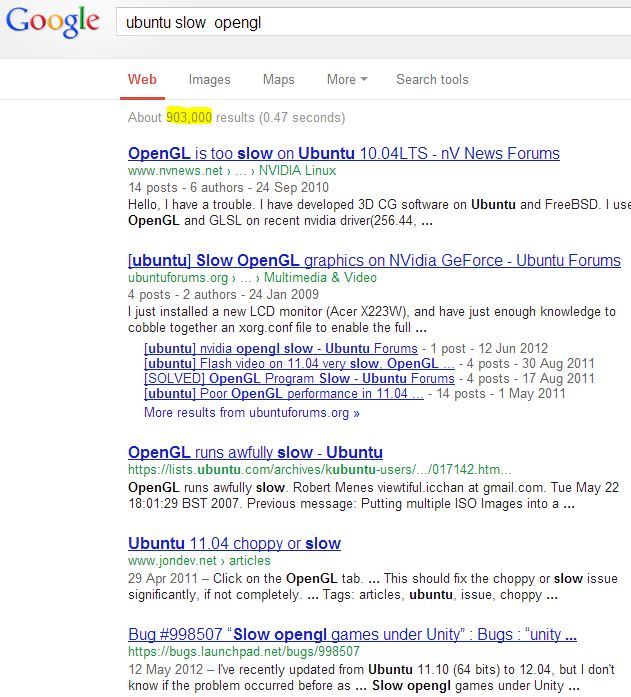
Without spending much time trying to diagnose the NB100 – IE Base install and connecting to the wireless, the speed does not exactly make the very honest Toshiba NB100 netbook usable. This is also assuming the tiny dual Atom, 1Gb of ram and the 120Gb non-ssd disk. Reading across some of the forums, the issue is traced back to Unity and the simple fact that Canonical has opted to dump more processing onto the GPU rather than the CPU. This all falls back to their OpenGL and GLSL. Without getting into details, it is worth noting that Google searches for “Ubuntu OpenGL slow” and “Ubuntu GLSL slow” bring up A LOT of results.
Appendices – Google results.
Documented workarounds are downgrading to older versions. 10.04 which is reasonably quick (pretty quick even as a VM), going to alternative distros with slightly lighter footprints – IE Lubuntu, Xubuntu, and Lubuntu if you would like to to stay with the ‘Buntu family. What has worked for me is to jump to Linux Mint Mate 14 – acknowledging that yes is it another apple from the same tree but this one was fallen a bit further and after a week of use seems more intuitive, better on resources, and could possibly even pass as an operating system you would install on your mom’s computer. Recent development: Further development from Canonical, the 13.10 release is meant to have a better polished Unity capable of providing a more fluid front end, loading time, etc. As yet this can not yet been benchmarked on the trusty old NB100 – http://www.omgubuntu.co.uk/2013/06/ubuntu-13-10-readies-arrival-of-smarter-unity-dash

Related reading: ARM Cortex-A72: Archived Launch Coverage.

Disk2VHD and Hyper-V: Archived P2V Freeze Notes

An older rack server beside a monitor with a fictional virtual machine dashboard.

Disk2VHD in the archive. A physical-to-virtual conversion that froze on older HP server hardware.

A recent P2V to Hyper-V 2008 R2 on the weekend brought about a challenge.

After the completion of the P2V; Disk2VHD creations + new VM, the newly created VM would drop to an almost frozen speed. Not much could be done short of cutting its power.

A bit of digging into it, I found the HP services (HP insight and all the awesome bloatware they load with the smart start CD) were causing the freeze.

Anyhows, long story short, before your maiden boot, go into safemode and disable ALL HP services – best practice should be to uninstall any legacy HP software, but first you will need to boot to do so. Your new VM should now be able to boot comfortably and if you’re running Windows 2003 – Be ready to drive without mouse until you have your integration services installed.


This was on a DL 380 G3, although further reading into if in the off-time showed people having similar issues with the G4 and G5s as well.

Related reading: USB over Ethernet for Virtual Machines.

Gargoyle Router

Gargoyle router in the archive. Trying alternative router firmware to understand bandwidth use.

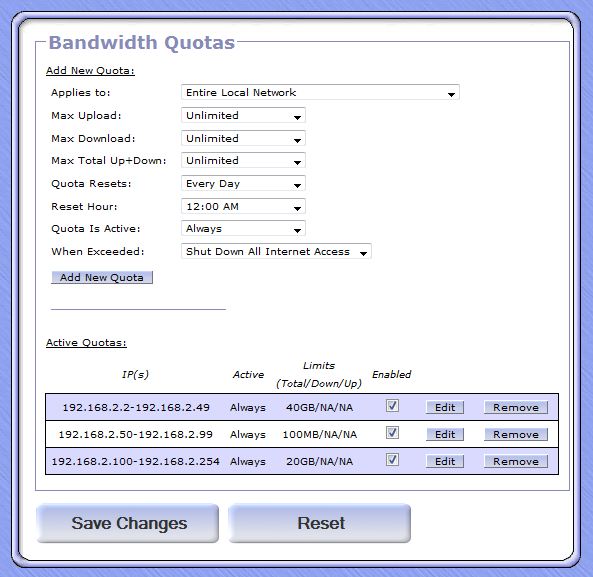
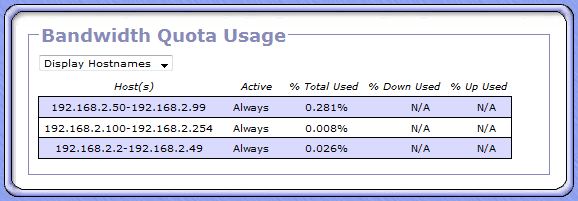
Over the past month, I have been having issues with the IPS’s Mb quota being used up. Given my current router is a Linksys WRT54GL I found a mention of Gargoyle Router. Enter Gargoyle Router: http://www.gargoyle-router.com/ After a little bit of investigation, Gargoyle Router *seems* to provide the answer to what is chewing up my bandwidth and also provide a few *very* nice  features, such as client quota, traffic shaping and also eliminate possible wireless threats. This is an ideal setup for keeping tabs on flatmates, kids, work colleagues, etc. The split I have used is per function, however this can be setup on per-individual basis. In my situation, I receive 50Gb from the ISP on a monthly rotation. I have 192.168.2.x (1-49) for client machines, 192.168.2.x (50-99) for wireless guests, and 192.168.2.x (100-254) for servers. I host a web server at home for my blog, PAP device for my VOIP, and the rest are pretty standard. My router is a plain-Jane WRT54GL v1.1 that will accept open source firmware – ie DDWRT, OpenWRT, Tomato, Gargoyle Router – you get the picture. So, once you have setup your Gargoyle router and are able to connect to the internet – the workstations; lets begin. Go to your Firewall, Quotas and setup the rules as you see fit, mines look as such:
Gargoyle Router Quota rules
Quota rules
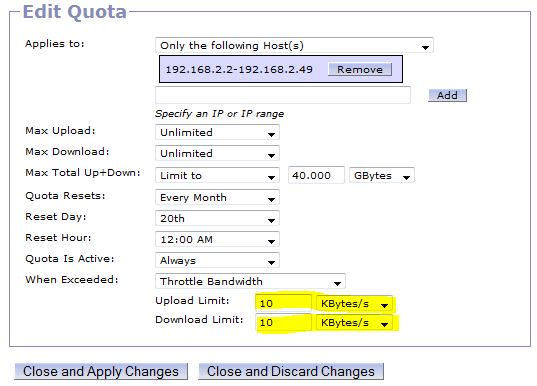
First goes through and allows 40Gb to clients, Second gives 100Mb to guest wireless devices and the last limits my servers to 20Gb monthly usage. You will notice that when creating the rules you also get the option to limit the bandwidth or completely drop connection dependant on the rule you have setup.
Quotas throttle
Quotas throttle
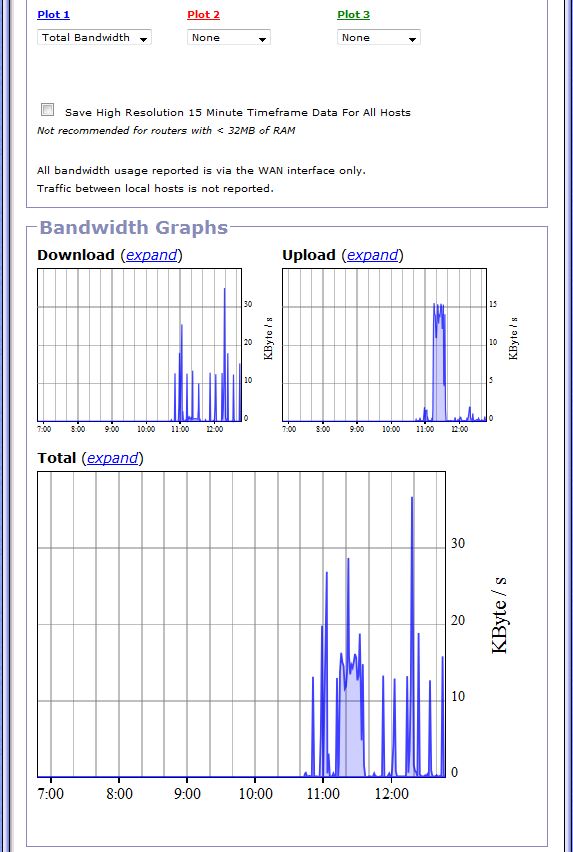
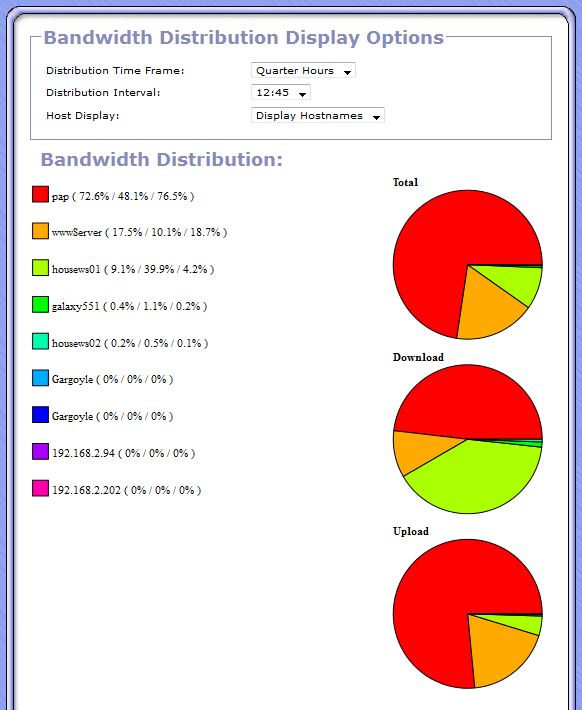
Ok, so now you have your quotas setup. Lets have a look at the eye-candy! Clicking on “Status”, “Bandwidth usage” will allow you to act big brother over whatever IP/Hostname you choose. gargoyle bandwidth usage But wait, there’s more! This is found under “Usage”, “B/W Distribution” gargoyle bandwidth distribution Lastly, and the cherry on the cake is the ability to check on your quotas, this is found under “Usage”, “Quota Usage”: gargoyle quota usage Hope this helps you too.  

Related reading: Data Centre Cabling: Comparing Layouts.