Automated PowerShell Script for Updating UserPrincipalNames in Active Directory After Domain Change

A UPN suffix change updates the part of the Active Directory sign-in name after the @ symbol. This archived example shows how I scheduled the change after a domain move.

Before scheduling the task

Before scheduling a UPN suffix change, confirm the destination suffix is configured and check the accounts the script will touch. Try the change on a small test group and verify cloud sign-in after directory sync.

You have completed the domain work in relation to your O365 tenancy, however the usernames replicated to AAD are in “username@old suffix.com” format.

Most organizations have inherited a “username@old-domain.local” suffix. Time goes on and the organization changes its name, amalgamates, etc, for whatever reason, effectively changes its name.

The target of the script is the group a on-prem active directory group.

The following script will serve to allow you to run the script wrapped in a scheduled task in order to change the full upn for the usernames in the group with from “username@old-company.local”(no joke intended), through to “firstname.lastname@new-domain.com” format.

I have used the script on a nightly basis but do not see the reason to run it more frequently.

Import-Module ActiveDirectory
$group = "O365 Users"
$newsuffix = "new-suffix.com"
$users = get-adgroupmember -Identity $group |Get-ADUser |sort userprincipalname
$from = "servername@domain.com"
$to = "admin-user@domain.com"
$tofailedrecipient = "poor.sysadmin@domain.com"

foreach ($user in $users){
    $upn = (($user.givenname)+"."+($user.surname)+"@"+$newsuffix).tostring()
    $upnfromad = ($user.userprincipalname).tostring()
    if ($upn -notmatch $upnfromad) {
        Try{
            $emailbody = "<HTML><HEAD><META http-equiv=""Content-Type"" content=""text/html; charset=iso-8859-1"" /><TITLE></TITLE></HEAD>"
            $emailbody = "<BODY bgcolor=""#FFFFFF"" style=""font-size: Small; font-family: Arial; color: #000000""><P>"
            $emailbody += "<p>The following UPNs have been updated:</p>"
            Set-ADUser -Identity $user.SamAccountName -UserPrincipalName "$($user.GivenName).$($user.Surname)@$newsuffix"
            $emailbody += $upn
            $emailbody += "<br>"
            $successMessageParameters = @{
                        Subject = "The following addresses have been updated - $((Get-Date).ToShortDateString())"
                        Body = $emailbody
                        From = $from
                        To = $to
                        SmtpServer = "x.x.x.x"
                        BodyAsHTML = $true
                        }
            $emailbody += "<p>Regards,</p>"
            $emailbody += "<p>Your friendly Office 365 team</p>"
            Send-MailMessage @successMessageParameters
            }
        Catch [Exception] {
            $ErrorMessage = $_.Exception.Message
            $failedMessageParameters = @{
                        Subject = "The following error was encountered when attempting to update the UPN's"
                        Body = ("'$ErrorMessage'") | Out-String
                        From = $from
                        To = $tofailedrecipient
                        SmtpServer = "x.x.x.x"
                        }
            Send-MailMessage @failedMessageParameters -BodyAsHtml
        }
    }
}

Related reading on this site: Change Suffix To AD Security group.
Change Suffix To AD Security group

To change UPN suffix values for a selected set of Active Directory users, start with a security group that contains the intended accounts. This archived PowerShell example scopes the update to that group.

Check the target membership

Check the membership before you change UPN suffix values. Record current sign-in names so you can compare the results and investigate discrepancies after sync.

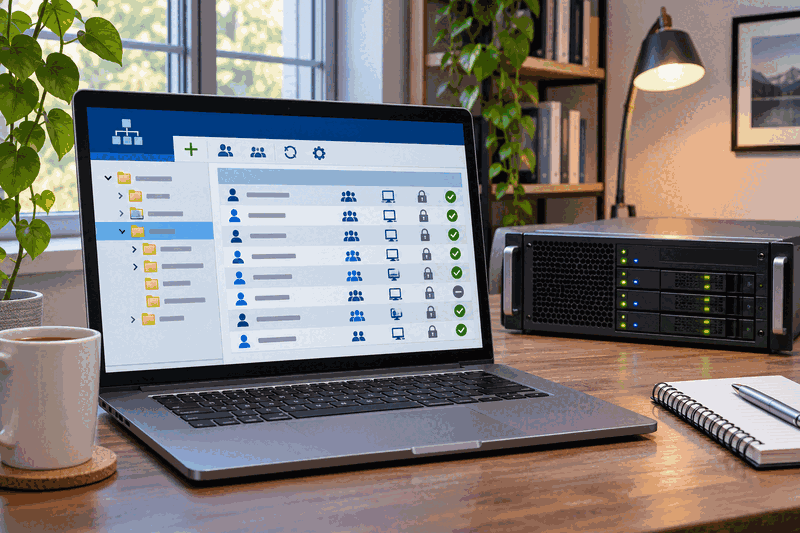
A laptop shows a fictional directory of user accounts beside a server.

You have completed the domain work in relation to your O365 tenancy, however the usernames replicated to AAD are in “username@old suffix.com” format.

Most organizations have inherited a “username@old-domain.local” suffix. Time goes on and the organization changes its name, amalgamates, etc, for whatever reason, effectively changes its name.

The following script will serve to allow you to run the script ad hoc in order to change the full upn for the usernames in the group with from “username@old-company.local”(no joke intended), through to “firstname.lastname@new-domain.com” format:

param([string] $group)
cls

Import-Module ActiveDirectory
$newsuffix = "new-suffix.com"
$users = get-adgroupmember -Identity $group |Get-ADUser


write-host "The following users are going to be renamed, would you like to procees?"
$users.userprincipalname 
write-host "The above UPNs are affected." -ForegroundColor Red
$confirmation = Read-Host "Are you Sure You Want To Proceed (y) to firstname.lastname@new-domain.com format" 
if ($confirmation -eq 'y') {
    foreach ($user in $users)
        {
            Set-ADUser -Identity $user.SamAccountName -UserPrincipalName "$($user.GivenName).$($user.Surname)@$newsuffix"
        }
}
Sleep 5

Get-ADGroupMember $group | get-aduser | select userprincipalname

Related reading on this site: Automated PowerShell Script for Updating UserPrincipalNames in Active Directory After Domain Change.

Backup permissions for Sharepoint Online

A SharePoint Online permissions export gives you a record of who could access a site at the time you ran it. This archived PowerShell example was written for a scheduled job.

Check what the export covers

Check whether your SharePoint Online permissions export covers the sites and access levels you need. Treat the output as sensitive and verify that the legacy authentication example fits your current tenant before using it.

Folders and a laptop illustrate recording SharePoint access permissions.

So you have started down the road of creating your Sharepoint site in Office 365 but you do not have permissions permissions as these require to be manually added.

We are a little lazier than that, this will be the basis of a scheduled job.

Please use the script below along with my small recommendations:

#one-time generation of an a file to hold password so that we may schedule the job. 
#read-Host “Enter Password” -AsSecureString |  ConvertFrom-SecureString | Out-File “C:\Scripts\o365_spo.txt”


Import-Module Microsoft.Online.SharePoint.PowerShell -DisableNameChecking

#Setup our variables
$date = (get-date -format "dd-MM-yy")
$contents = $null
$emailbody = $null
$AdminURL = "https://tenancy-admin.sharepoint.com"
$AdminName = "O365Backup@domain.com"
#admin account we will be adding
$AdminNames = "backup.account@domain.com","sharepoint.admin@domain.com"
$TenantPass = cat “C:\Scripts\o365_spo.txt” | ConvertTo-SecureString
$TenantCredentials = New-Object -TypeName System.Management.Automation.PSCredential -ArgumentList $adminname, $TenantPass
$cred = [System.Net.CredentialCache]::DefaultCredentials
[System.Net.WebRequest]::DefaultWebProxy.Credentials = $TenantCredentials

Connect-SPOService -Url $adminurl -credential $TenantCredentials

#Build site list
$Sites = Get-SPOSite -Limit ALL

$emailbody = "<HTML><HEAD><META http-equiv=""Content-Type"" content=""text/html; charset=iso-8859-1"" /><TITLE></TITLE></HEAD>"
$emailbody = "<BODY bgcolor=""#FFFFFF"" style=""font-size: Small; font-family: Arial; color: #000000""><P>"
$emailbody += "<p>Please be aware that the following permissions have been added to sharepoint sites by $AdminName :</p>"
$emailbody += "<p>Tenancy: $AdminURL</p>"


Foreach ($admin in $adminnames){

    Foreach ($Site in $Sites){
        Set-SPOUser -site $Site.Url -LoginName $Admin -IsSiteCollectionAdmin $True
        $displayname = Get-SPOUser -site $Site.Url -LoginName $admin
        $displayname = $displayname.displayname | out-string
        $url = $site.url | Out-String
        $isadmin = get-spouser $site.url -loginname $Admin | select issiteadmin
        $emailbody += "$displayname confirmed as $isadmin for: $url</br>"
        write-host $emailbody
        }
}
$emailbody += "<p>Regards,</p>"
$emailbody += "<p>Your friendly Office 365 team</p>"
$successMessageParameters = @{
Subject = "Site Collection Admin Added to SharePoint Sites - $((Get-Date).ToShortDateString())"
Body = $emailbody
From = "servername@domain.com"
To = "backupadmins@domain.com","digitalplatformteam@domain.com"
#To = "testing.user@domain.com"
SmtpServer = "x.x.x.x"
BodyAsHTML = $true
}
Send-MailMessage @successMessageParameters

Related reading on this site: AAD Group Licensing Limitations.

AAD Group Licensing Limitations

AAD group licensing was meant to make licence assignment easier to manage through groups. These notes capture the limitations I was reading about in 2017 while working with directory sync.

Context for these 2017 notes

When reading the archived licensing notes, check the date and confirm implementation details against Microsoft’s current documentation. Start with the group membership and licence assignment you expect to apply.

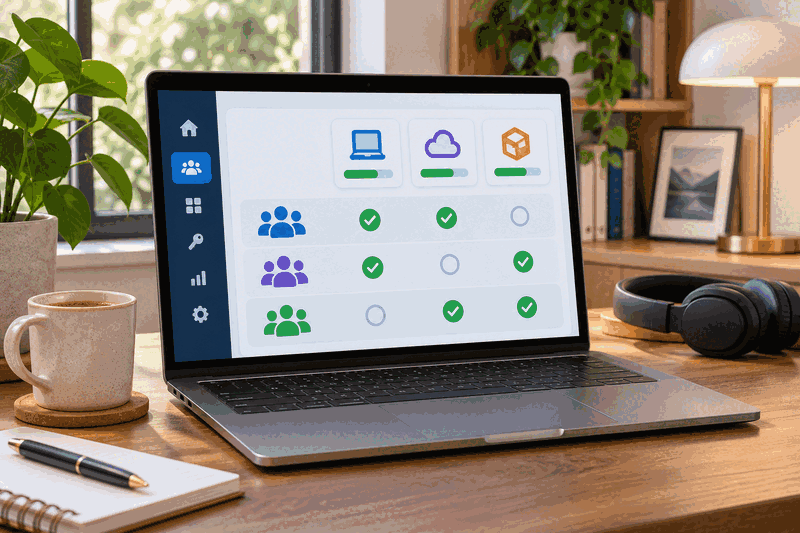
A fictional group licensing dashboard shows users and assignment checkmarks.

Whilst trying to setup the Dirsync/AAD Connect group licensing, I came across this the link below:
https://docs.microsoft.com/en-us/azure/active-directory/active-directory-licensing-group-advanced#limitations-and-known-issues

Great read, outlining the following limitations of AAD Connect replication:

  1. Group nesting.
  2. Group licensing being only available to security groups.
  3. Impacts of removing a user from a group.
  4. Performance implications.
  5. Logging and auditing.

Related reading on this site: Backup permissions for Sharepoint Online.