Backup from the blog. A Windows backup setup and the importance of checking what can be restored.
A lot of backup suites are available in Windows, but with about half hour of your time, this will provide you with a backup solution.
Try the following just by filling the blanks in the scripts.
I’ve found the following combination to work pretty well. This combination is a D2D, with the possibility of a D2D2T otherwise D2D + Previous versions (Windows 2003 and on-wards).
So, let’s begin – the D2D backup – Robocopy.
Worthwhile mentioning – The below recommendation has been tested in an environment containing about 2Tb of Office docs and other various bits.
First use robocopy, the following script should be used by filling in the blanks – source, destination and whee you want your log file. I found this to take about 30 mins in a production environment.
The log location is going to be pretty important in that we will be firing this puppy to your SMTP server!
Take the following and paste it into a batch file with the above changes and set this up as a scheduled task:
@ECHO OFF
SETLOCAL
SET _source=C:source
SET _dest=\%computername%x$
SET _what=/MIR /COPYALL /B /SEC /A-:H
:: /COPYALL :: COPY ALL file info
:: /B :: copy files in Backup mode.
:: /SEC :: Copy security Descriptors
:: /MIR :: MIRror a directory tree
:: /XD :: Copy except for the following folders
:: /XF :: Exclude file(s) – ie the log file
:: /A :: Set attributes
SET _options=/R:3 /W:5 /LOG:c:sourcemailme.txt /NP /NDL
:: /R:n :: number of Retries
:: /W:n :: Wait time between retries
:: /LOG :: Output log file
:: /NFL :: No file logging
:: /NDL :: No dir logging
:: /NP :: No Progress – does not show progress bar
ROBOCOPY %_source% %_dest% %_what% %_options%
Ok so now you have replication between your source and destination. Great! Lets get some monitoring going.
The following vbs will allow you to send (yourself) and e-mail with the changes – probably worthwhile to dump the following into a vbs and run as a scheduled script, also remember to call it with from a back script with the following “cscript &scriptname&”:
Set objMessage = CreateObject(“CDO.Message”)
objMessage.Subject = “Log to self”
objMessage.From = “me@contoso.com”
objMessage.To = “backuplogs@contoso.com”
objMessage.TextBody = “Haha – you know you love some good spam!”
objMessage.AddAttachment “c:sourcemailme.txt”
objMessage.Send
Ok – so now you are getting a D2D and are also receiving logs – Sleek!
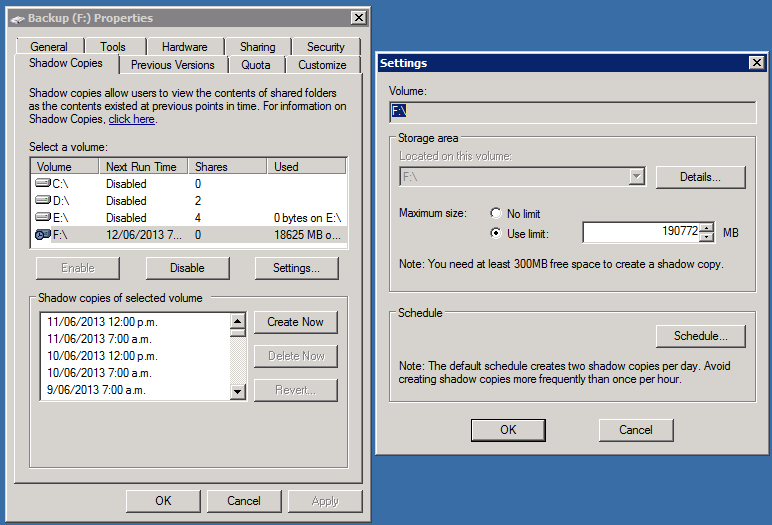
Now that this is going so well, we will probably want to some previous versions of your files using ShadowCopy. The limit to *how much* space you will want to allocate to your previous versions is highly dependent on the *type* of files you will want to recall – ie more space for large files such as videos. There is no right/wrong answer for this.. experiment and see what best fits the environment you are in – if you need to allocate more space to previous versions, so be it, if not, all the better.
The following script will be an easy way to trigger a shadow copy and should be scheduled as a daily job as well.
Grab the script below and dump into a VBS script:
Const VOLUME = “C:”
Const CONTEXT = “ClientAccessible”
strComputer = “.”
Set objWMIService = GetObject(“winmgmts:” _
& “{impersonationLevel=impersonate}!\” & strComputer & “rootcimv2”)
Set objShadowStorage = objWMIService.Get(“Win32_ShadowCopy”)
errResult = objShadowStorage.Create(VOLUME, CONTEXT, strShadowID)
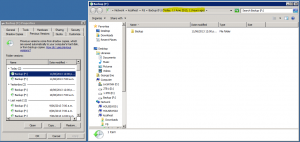
As far as shadow copy goes, I found the following allotment to work well on a 2Tb resulting in a 35 day retention period in an environment with little change – once again dependent to the amount of change in your environment. The screenshot is from Win 2008 R2, valid to 2012 and 2003 environments as well (given tiny gui changes).
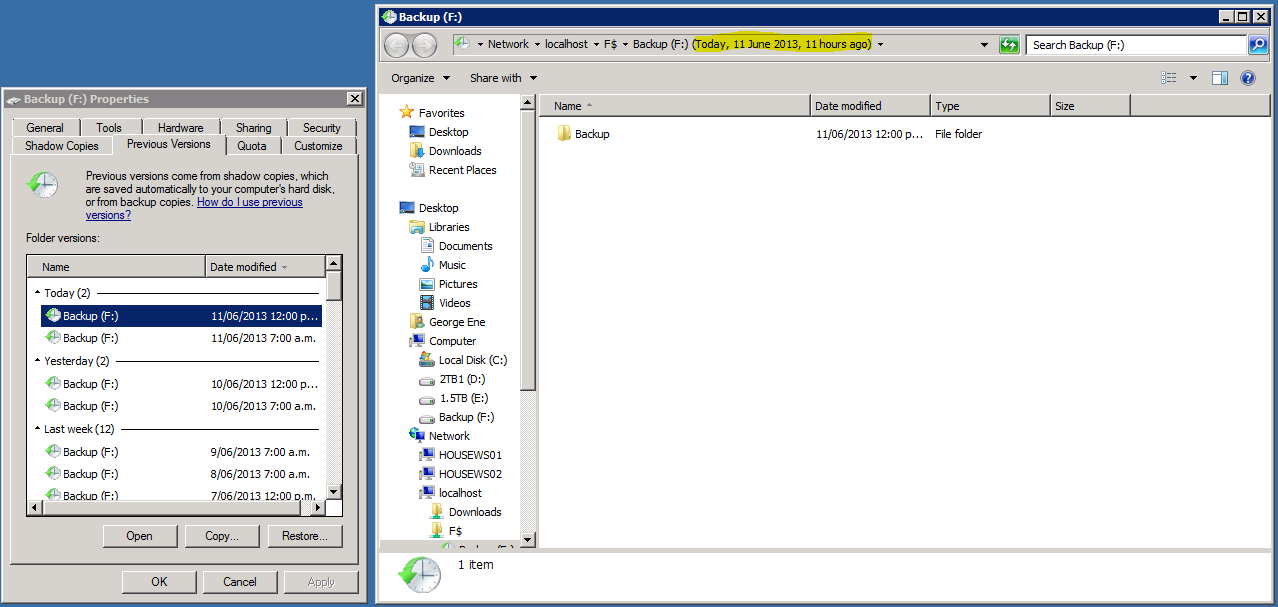
So, the follow is is now available in your “Previous files” and there is nothing stopping you dumping these files to your tape library – especially if you have a dedicated DAS or Backup NAS/LUN. Should look a little like this after running it for a while:
Result?
- Free backup using Ms built-in functionality.
- D2D Backups – free deduplication.
- Monitoring (to email) for this backup.
- Quick file restore without the need for tapes (Yes, I acknowledge HDDs don’t grow on trees but youg on also have to realize you are not spending on an Enterprise D2D dedup either piece of software either!)
- Possible D2D2T options.
This has server me well since 2003 days, never got the chance to document it.
Worth mentioning that Windows 2008 onwards also support multi-threaded robocopy-ing!
Best of luck for now – Go fourth and backup – maybe restore a little too!
Related reading: Robocopy Replication with Monitoring.
We’ve got the Android M preview installed on some devices already, and we’re beginning to dig down past the major improvements that Google announced on stage earlier today. One of these is an improvement to Android’s backup system—if you choose to back up your device with a Google account, apps that target Android M and newer will have all of their data and settings backed up by default. That data can then be downloaded and restored to your phone if you get a new one or need to wipe it for some reason.